Intercom
Maven provides an integration with Intercom that enables automatic knowledge base synchronization and ticket creation directly from conversations.
Features
- Knowledge Base Ingestion: Automatically syncs articles from your Intercom Help Center to Maven
- Ticket Creation: Create support tickets directly from Maven chat conversations
- Conversation Transcripts: Attaches full conversation history as internal notes on tickets
- Contact Management: Intercom automatically handles contact creation and matching
Prerequisites
Before setting up the Intercom integration, you’ll need:
- An Intercom account with API access
- An API access token from a custom Intercom app
- (Optional) A Help Center ID if you want to sync from a specific help center
- (Optional) Ticket type and team/admin IDs for ticket routing
Setup within Intercom
Step 1: Create a Custom App and Access Token
- Log in to your Intercom account
- Open a new tab and go to the Intercom Developer Hub
- Click New app to create a new application
- Name it “Maven Integration” or similar for easy identification
- On the next screen, find Authentication in the left-hand menu and click it
- Your private Access Token will be automatically generated and displayed under the name of your workspace
- Copy and securely store your Access Token
Store your API access token securely. It provides access to your Intercom data.
Step 2: Find Your Help Center ID (Optional)
If you want to sync articles from a specific Help Center rather than all Help Centers:
- Navigate to your Help Center in Intercom
- The Help Center ID can be found in the URL or via the Intercom API
Step 3: Configure Ticket Settings (Optional)
For ticket creation, you may want to configure:
- Ticket Type ID: The type of ticket to create (defaults to standard support ticket)
- Default Team ID: The team to assign tickets to
- Default Admin ID: The admin to assign tickets to
These IDs can be found in Intercom’s admin settings or via the API.
Setup within Maven
- In Maven AGI, navigate to your agent
- Go to Apps and find Intercom
- Enter the following settings:
- Click Install
The app will automatically:
- Validate your credentials
- Ingest your Help Center articles
- Create ticket creation actions
Knowledge Base Sync
Maven automatically syncs articles from your Intercom Help Center:
- Article Content: Full article body is fetched and processed
- HTML Conversion: HTML content is converted to Markdown for optimal AI processing
- Auto-refresh: Knowledge base is updated periodically to keep content fresh
- Selective Sync: Optionally sync from a specific Help Center using the Help Center ID setting
Ticket Creation
When Maven cannot fully resolve a user’s inquiry, it can create a support ticket in Intercom. Two actions are available:
For Identified Users:
- Appears when user has name and email in their profile
- Pre-fills contact information automatically
For Unidentified Users:
- Appears when user information is not available
- Prompts for name and email before creating the ticket
Both actions:
- Create a ticket with the subject and description provided by the user
- Let Intercom handle contact creation/matching automatically by email
- Attach the full Maven conversation transcript as an internal note
- Optionally route to specified team or admin
- Enable email notifications to the customer (tickets are shared)
Troubleshooting
Invalid Access Token Error
- Verify your access token is correct and hasn’t been revoked
- Ensure the token has the required permissions for Help Center and ticket access
- Check that you’re using the correct workspace
No Articles Ingested
- Verify your access token has read access to Help Center articles
- If using a Help Center ID, ensure it exists and contains published articles
- Check that articles are in a published state
Ticket Creation Fails
- Verify your API token has write access to Tickets and Contacts
- Check that required fields are being provided (email, subject, description)
- If using Ticket Type ID, ensure it’s valid for your workspace
- Review Intercom API logs for detailed error messages
Workflow Integration (Legacy)
The workflow integration approach described below is an alternative method for integrating Maven with Intercom. For most use cases, we recommend using the standard integration described above, which provides a simpler setup and better user experience.
Maven can also participate in Intercom workflows via a Custom Action. This approach is useful if you need to integrate Maven responses directly into existing Intercom workflow automations.
Configure Maven for Workflows
To get started, install the Intercom App from the Maven App directory:
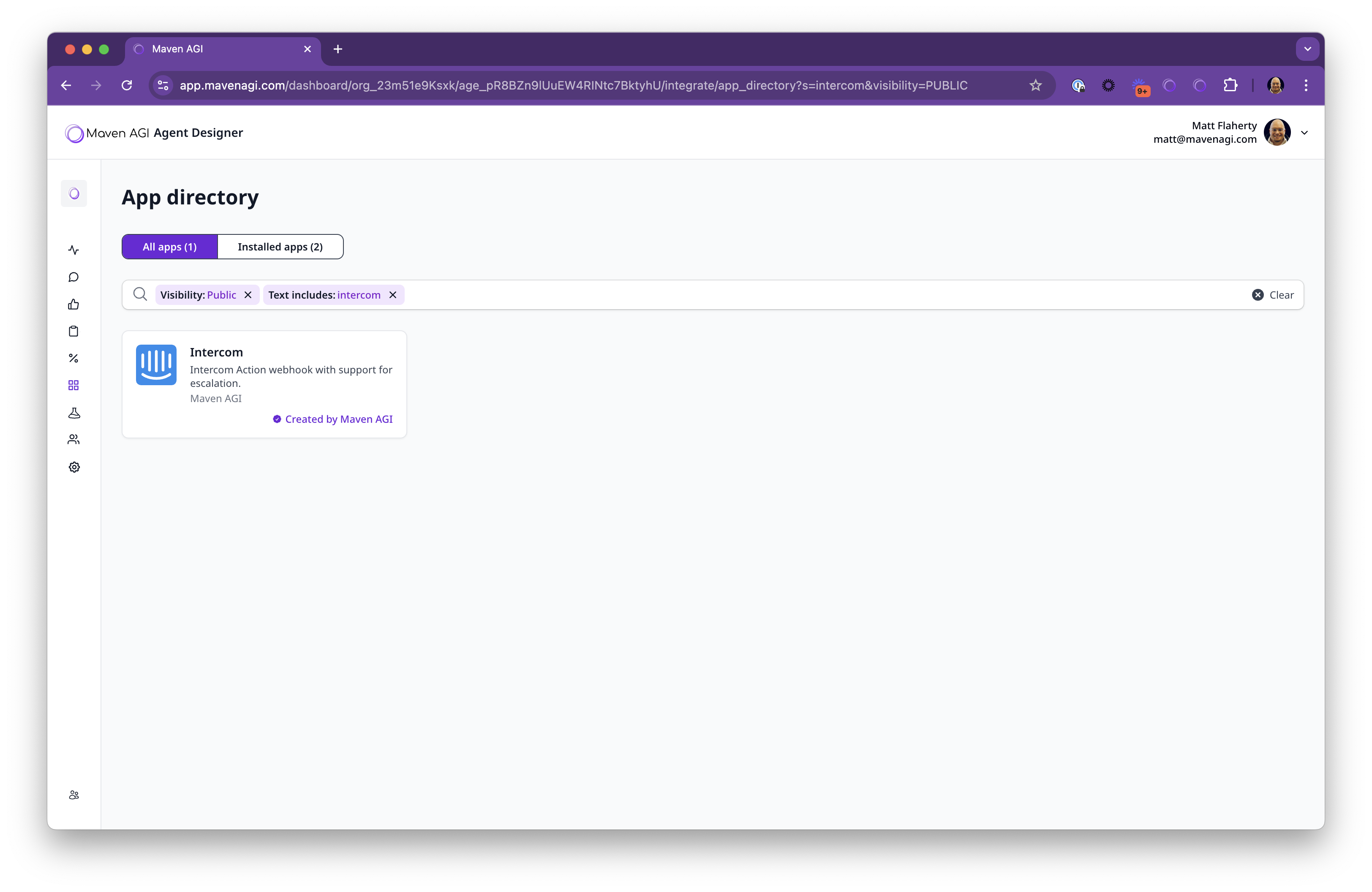
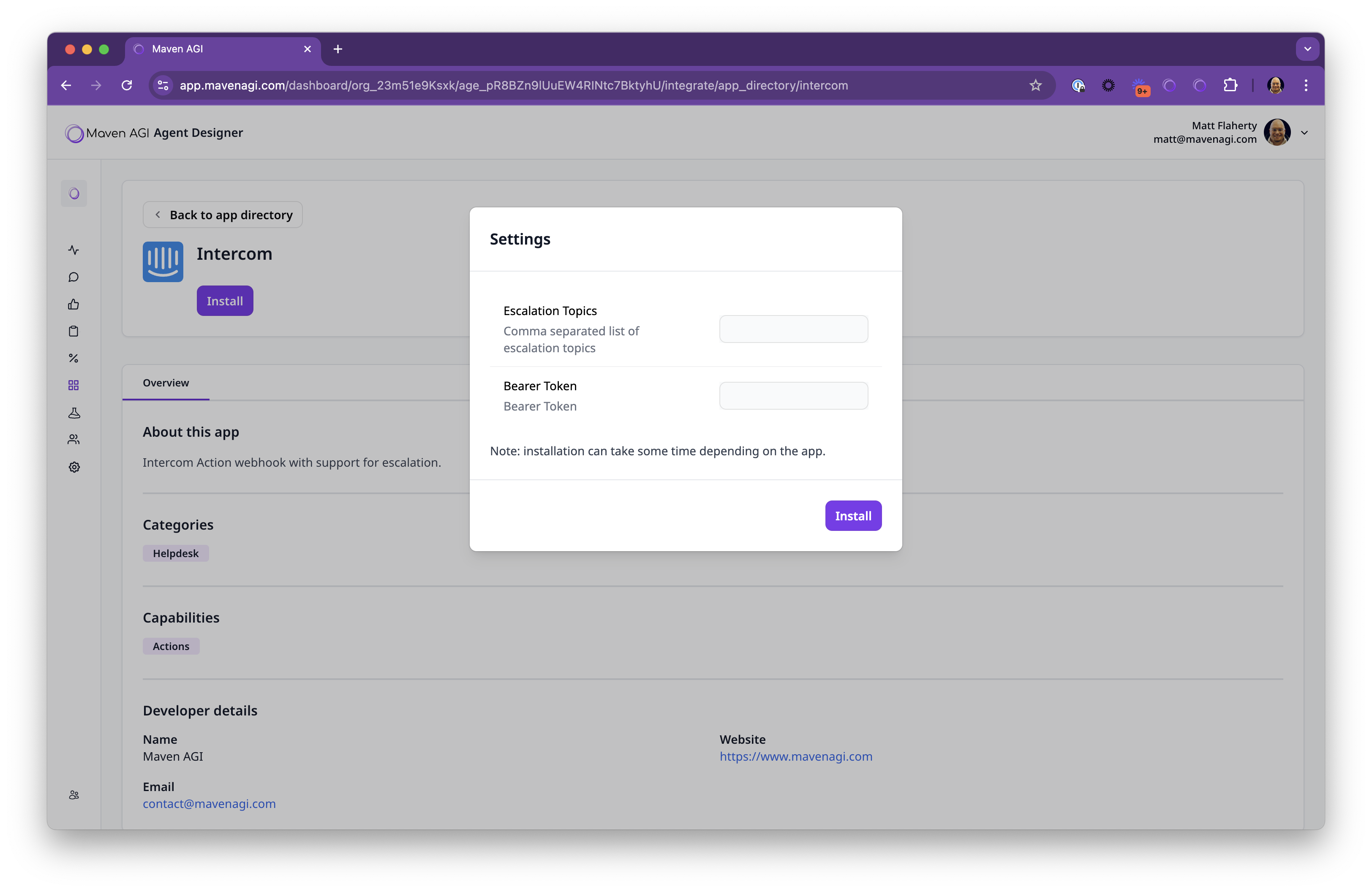
Create an authentication token to be used between the services using a random number generator (e.g., openssl rand -hex 32). Configure that secret during the installation. Also, provide a comma-separated list of escalation topics that can signal to Intercom that Maven thinks it should escalate the conversation to a ticket (this can be tuned later).
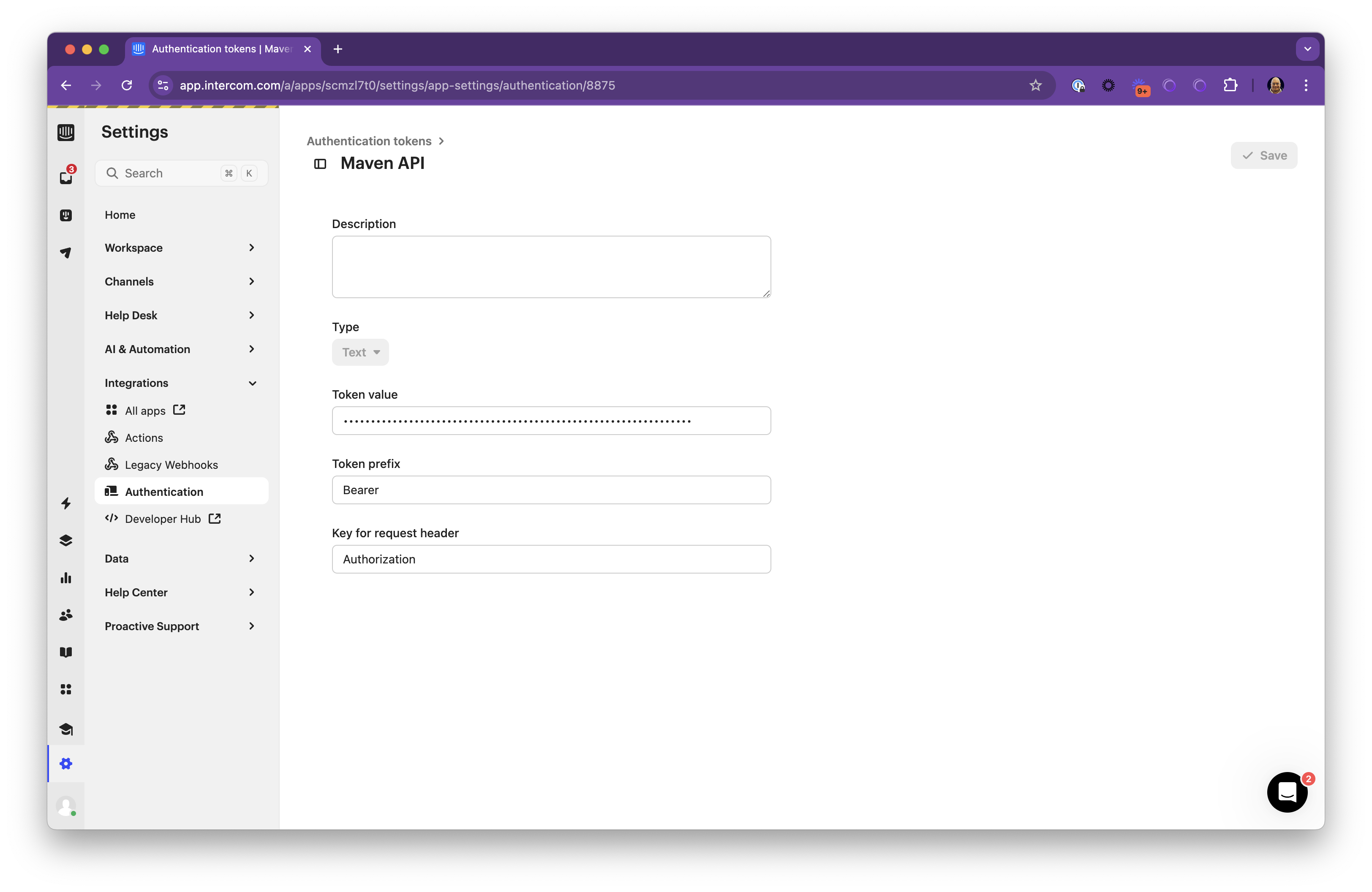
Configure Intercom for Workflows
Navigate to Settings -> Integration -> Authentication in Intercom and create a record for the token created above.
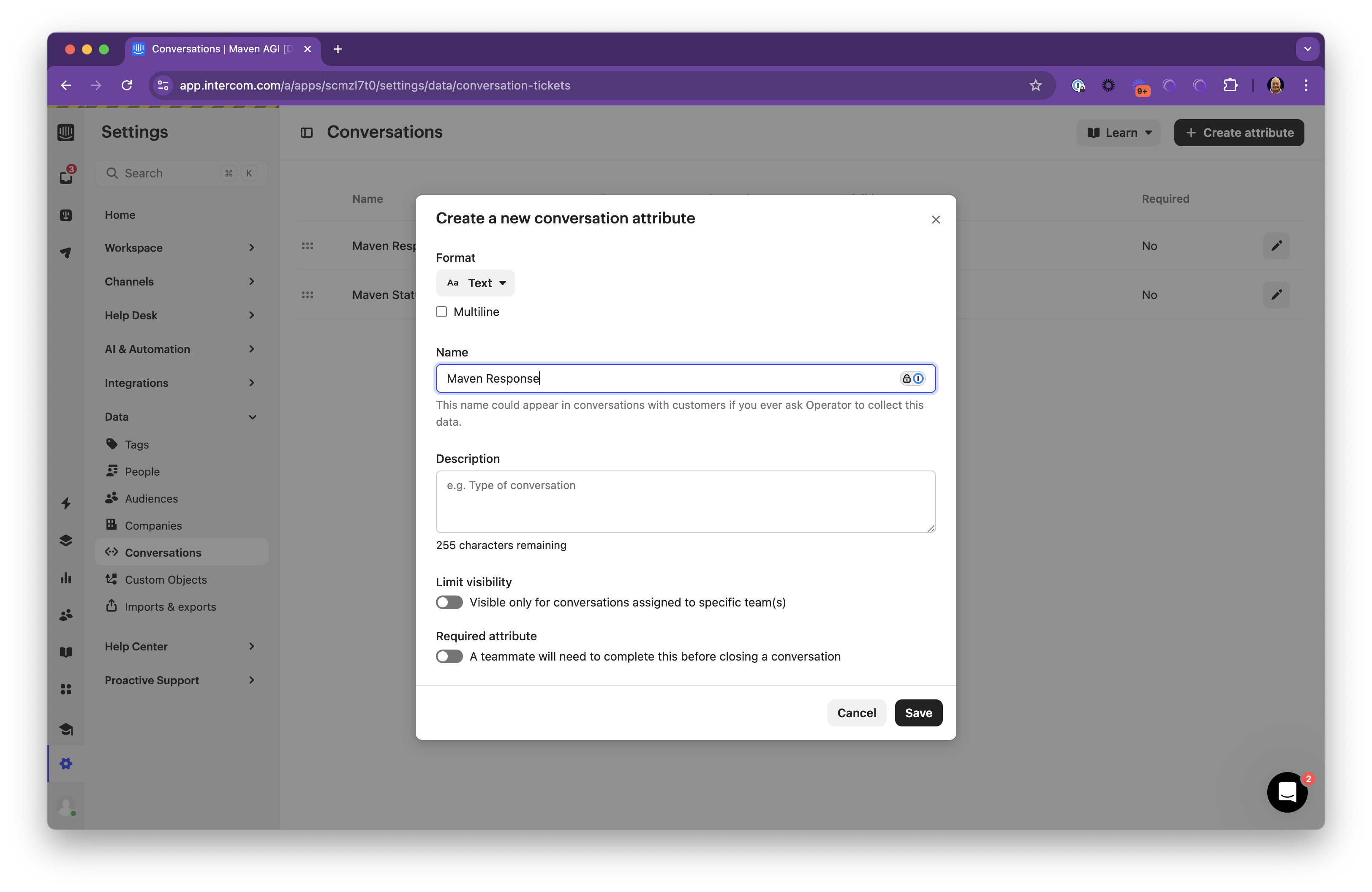
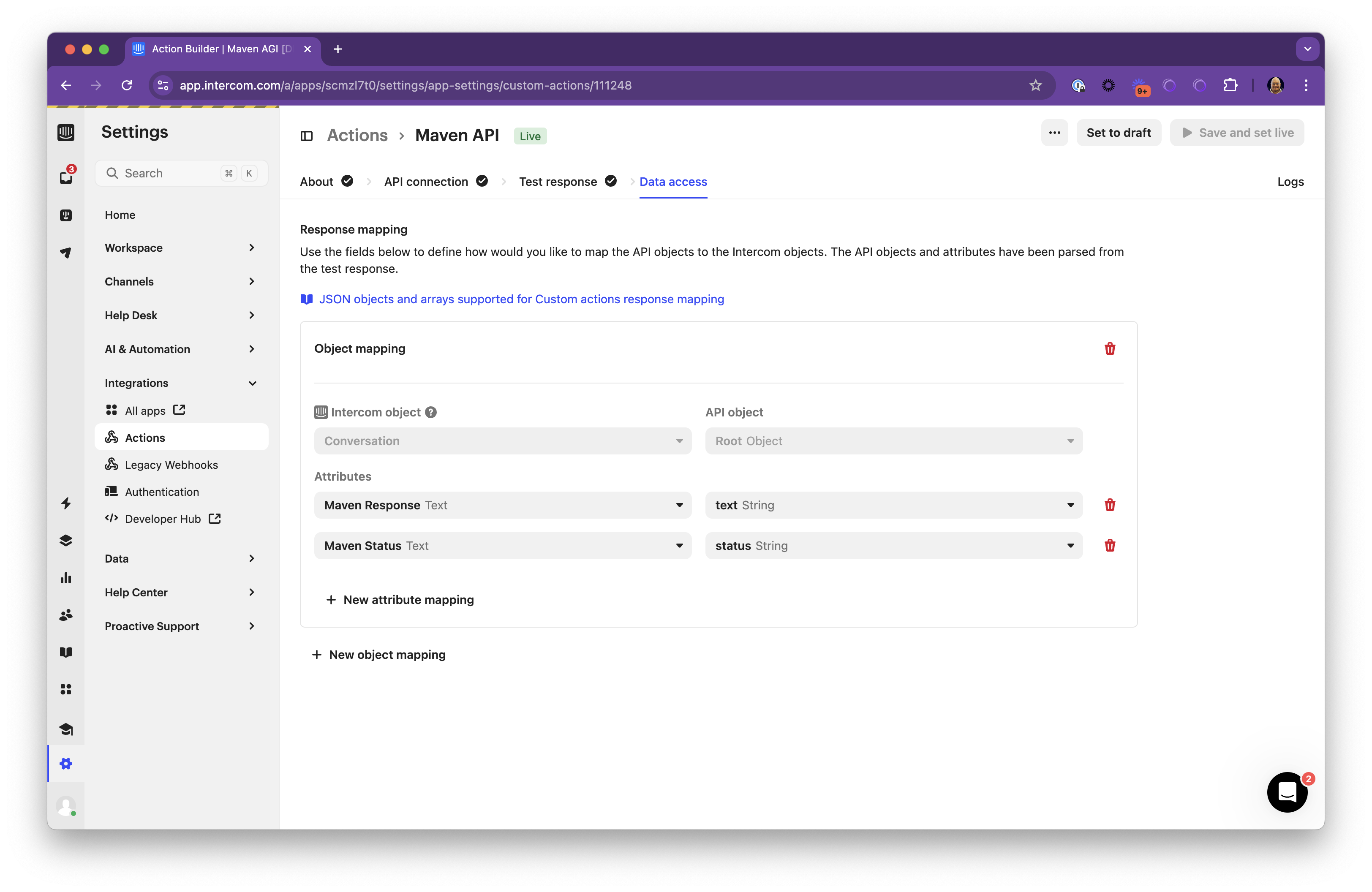
The Maven Custom Action will return its response into a custom attribute on the conversation. Navigate to Data -> Conversations and add custom attributes for Maven Response and Maven Status.
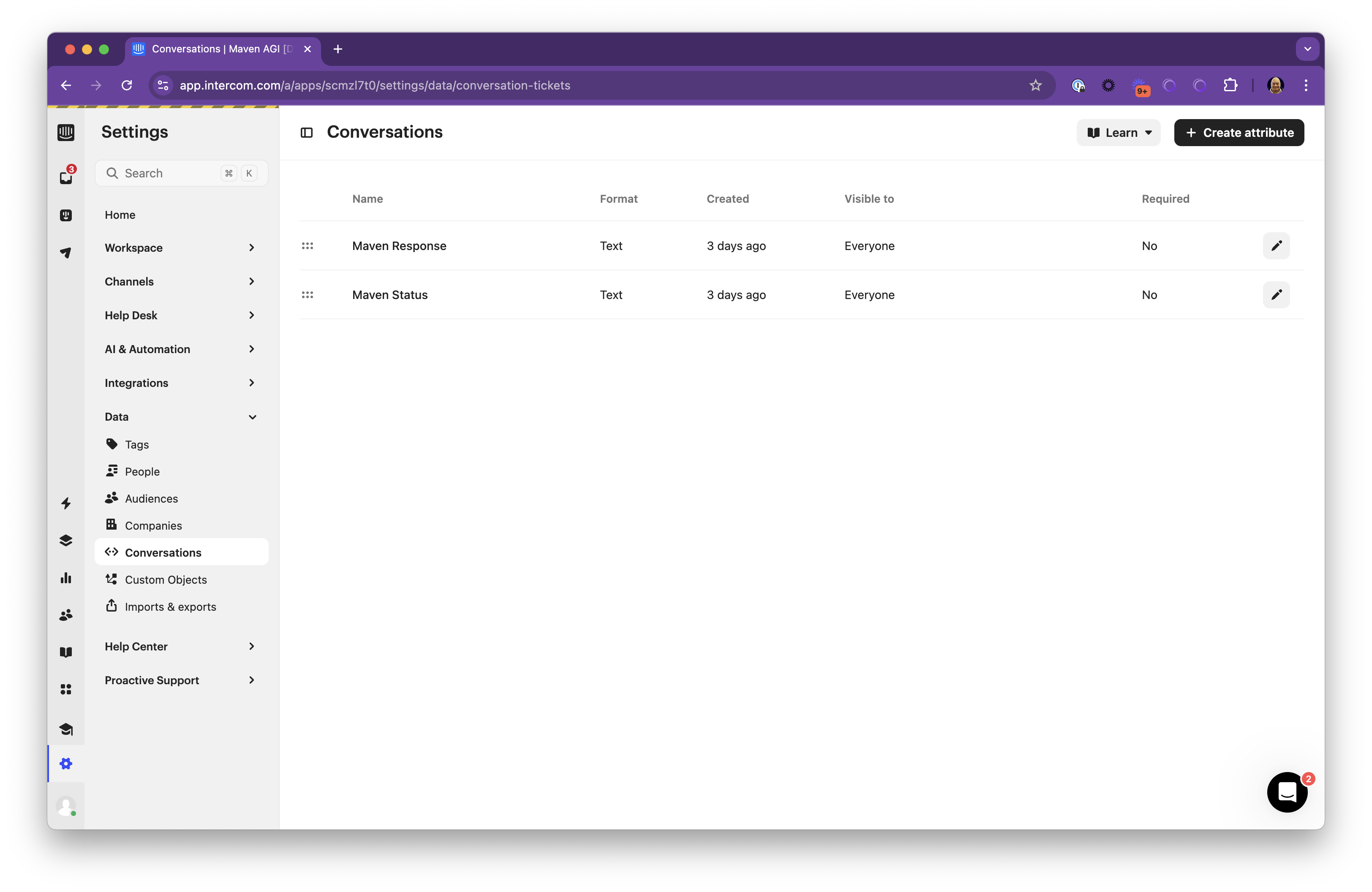
The action itself is an API call to Maven with a URL that encodes both your organization and agent ID. Navigate to Settings -> Integration -> Custom Actions and create a new record.
On the About page, set the Action Usage to be Workflows and Help Desk.
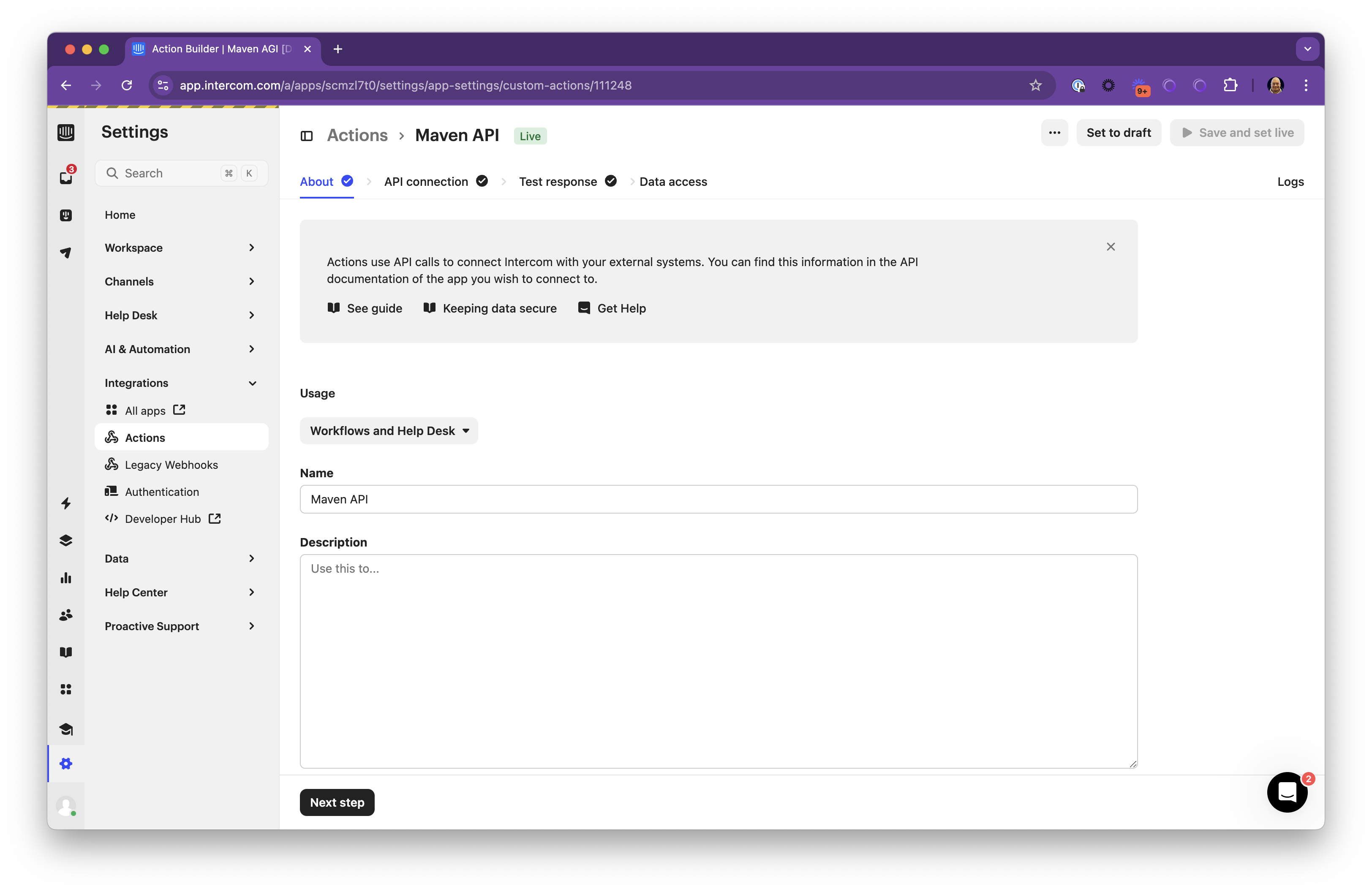
On the API Connection page, set the URL to:
Replace {ORG_ID} and {AGENT_ID} with your actual organization and agent IDs. Configure the authentication token from above as an authorization header.
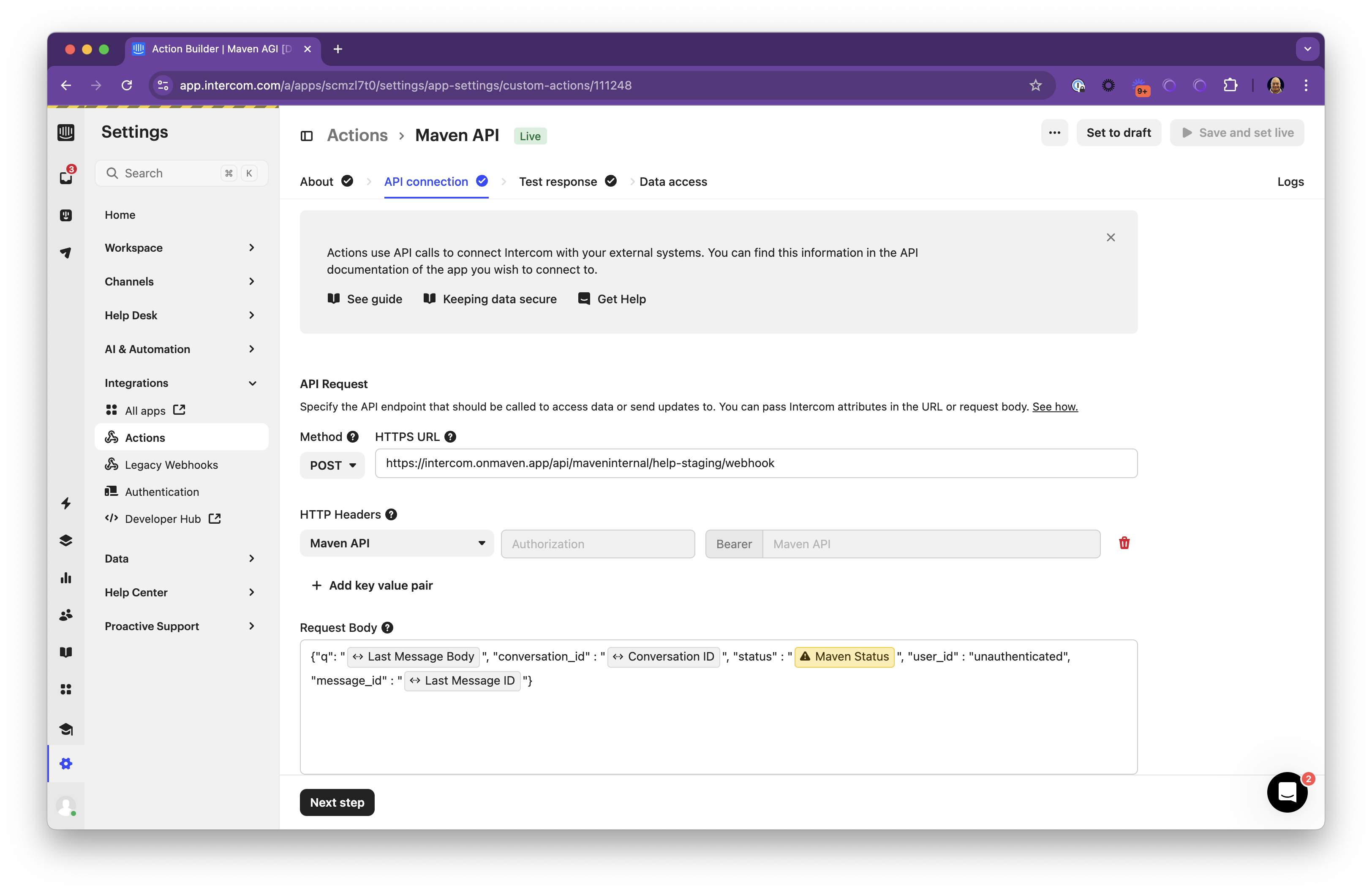
The request values need to be mapped to a JSON structure using Intercom values as shown below. Use the Intercom variable tool to inject Last Message Body, Maven Status, Conversation ID, Last Message ID and optionally User ID.
On the Test Response page, provide arbitrary values and ensure that a response comes back in the proper form.
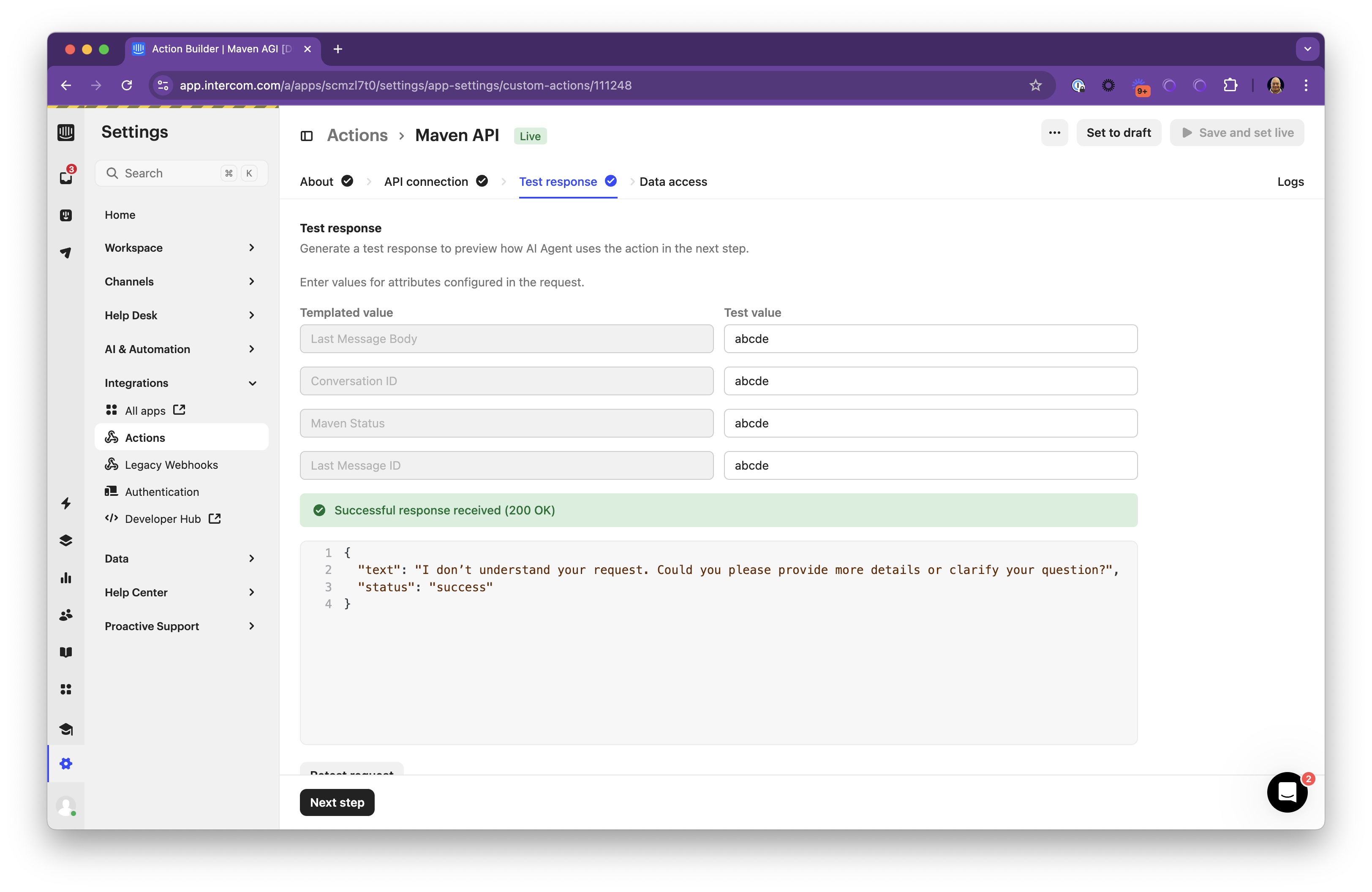
Once the message is returned, map the response values for text and status to the conversation attributes created above.
Integrating into a Workflow
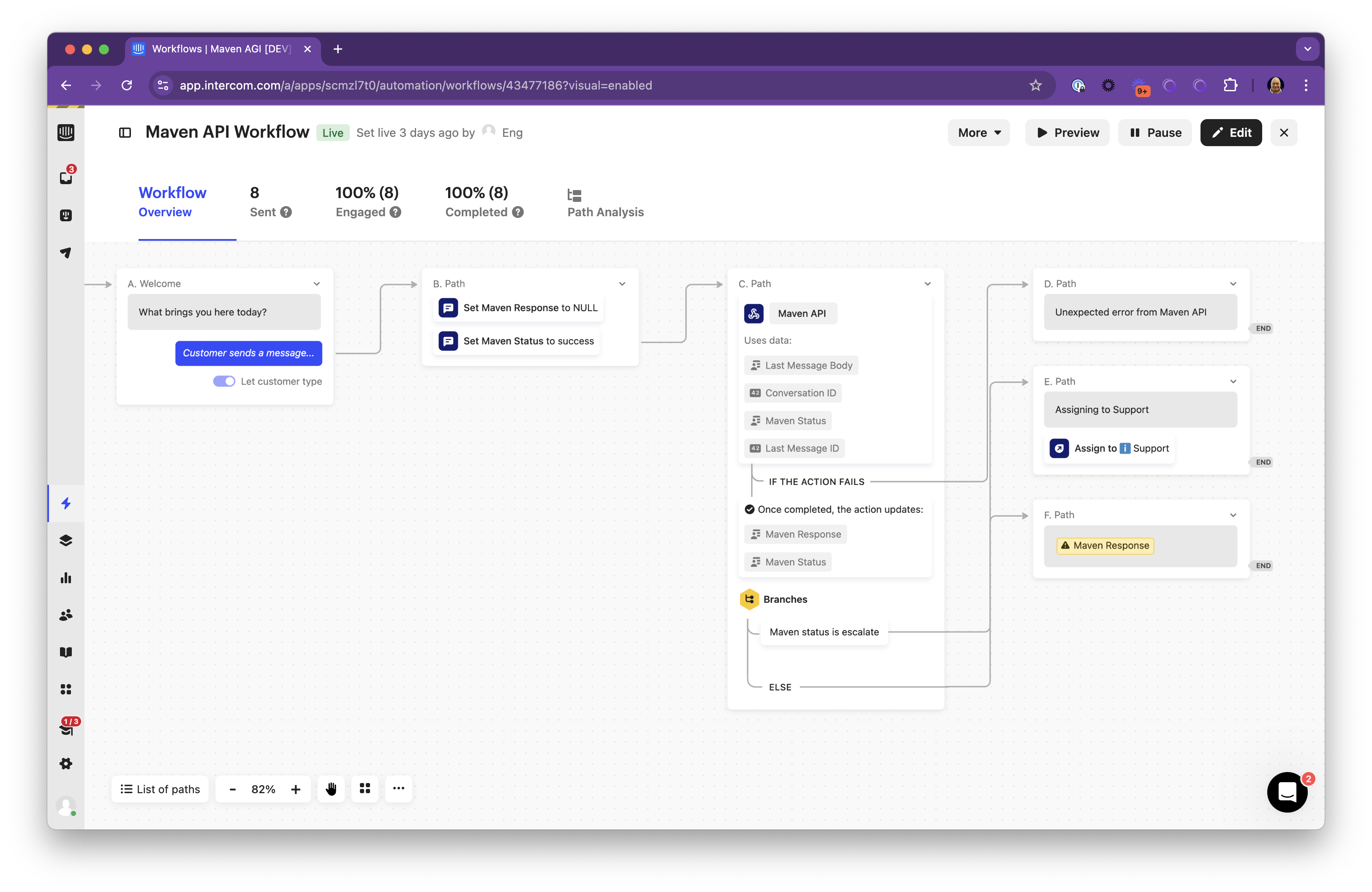
To integrate the custom action into a workflow, add it to the flow using Intercom’s builder.
Workflow Logging
Action logs are available in the logs panel of the Intercom Custom Action.
Workflow Limitations
The major limitation is that streaming responses are only available through Maven’s chat interface and not through third-party chat interfaces like those of Intercom.
Still not working?
Contact us for more support.