OAuth Sign In Action
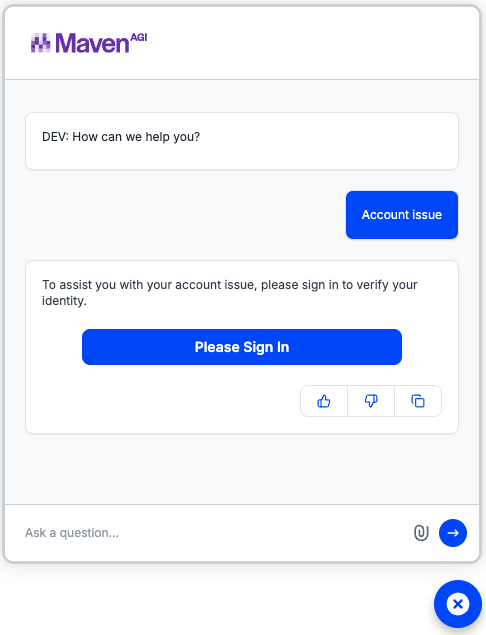
MavenAGI supports OAuth through the OAuth Sign In Action, this action will connect to the OAuth service, get the user information and show an escalation form to the user, to complete the escalation.
To show the escalation flow, action chaining must be turned on, if it is, updating the description will be enough to tell the bot what action must be executed after the user has sign in.
Installation
To install the OAuth Sign In Action on your agent:
Locate the OAuth Sign In Action App
- Go to Agent Designer
- Look for the organization and the Agent in which you want to install the Action
- Search for OAuth Sign In Action
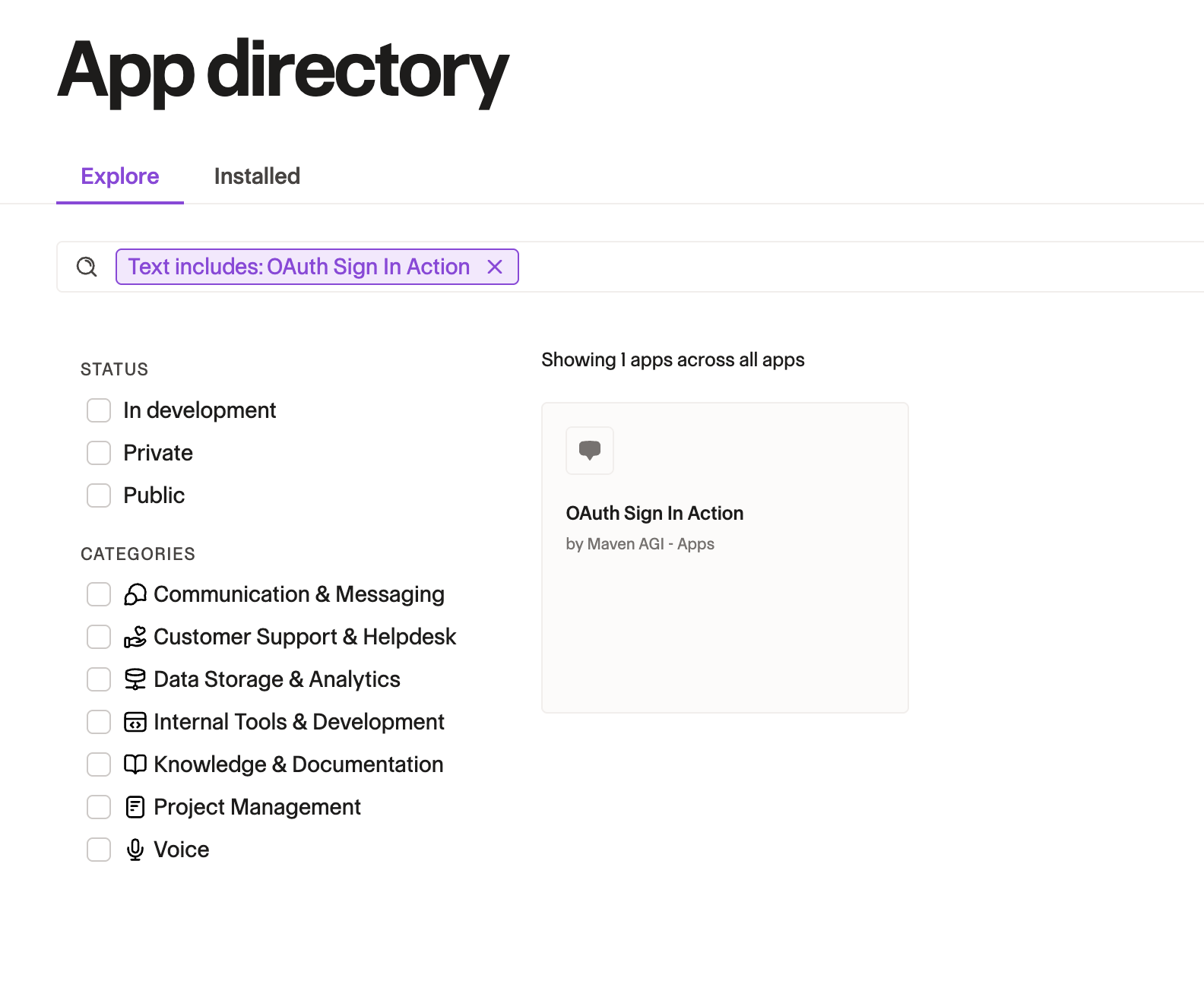
OAuth Sign In Action in Agent Designer - Open the action, and click install
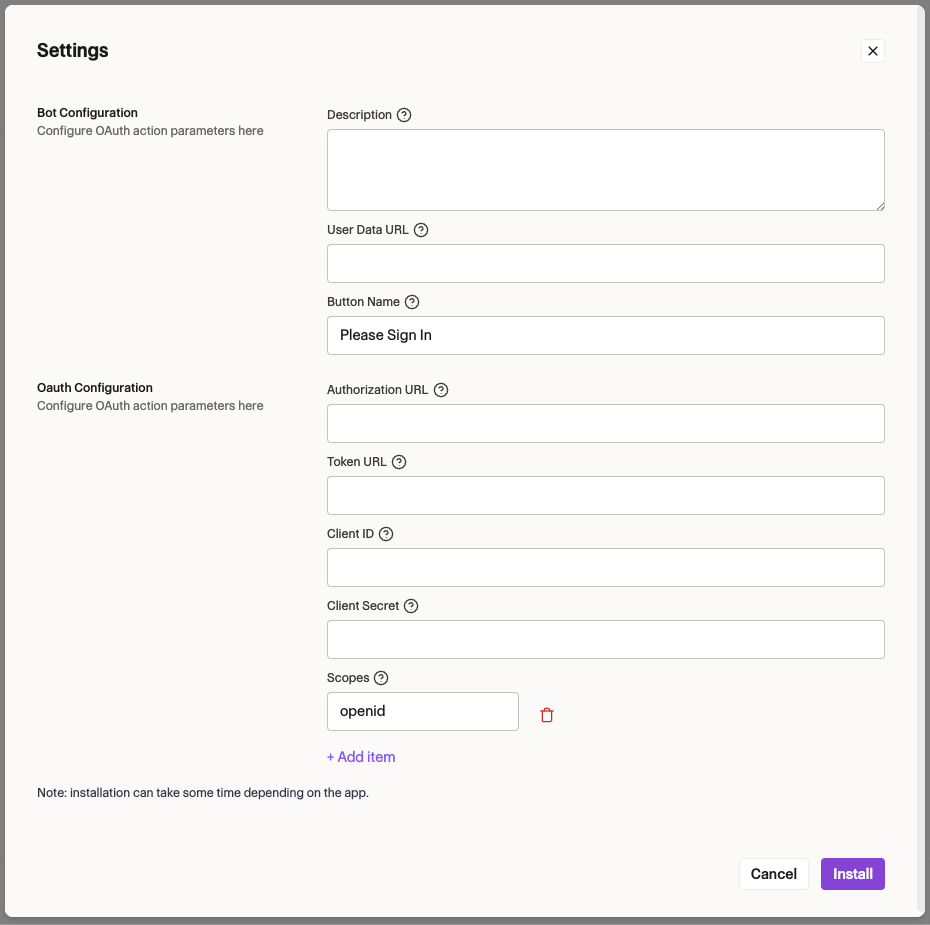
- When Installing the application, this form will appear, fill in the spaces to complete the installation
Enabling Action Chaining
For the chat widget to execute the right flow, an action chaining feature flag must turned on for your organization. Make sure to contact your representative so the feture flag is enabled for your organization.
Once that action chaining is enabled, we can update the Action Description to use a prompt like the following to get the bot to respond with the escalation action after the user has signed in. If it is not possible to for the Bot to escalate the end user, it can also responde with a simpler message.